
Construction logic and measurement rules, applied consistently. AI assists with classification, mapping and calculation. It never approves a quantity.
BOQ directly from a Revit model to Excel
BOQ export to Microsoft Excel files
AiN connects BIM model elements, bill of quantities items and Excel. Quantity surveyors, contractors and tender managers can move from a BOQ line to the model, review the basis of a calculation and add work that the model does not describe.
- See everything that exists in the model.
- Every row based on the model links back to the elements it was derived from.
- Click a row and see what it represents in the model.
Concrete has the highest level of automation. Other trades can be prepared in the system with more mapping and manual completion. A professional quantity surveyor or engineer must review the output before commercial use.
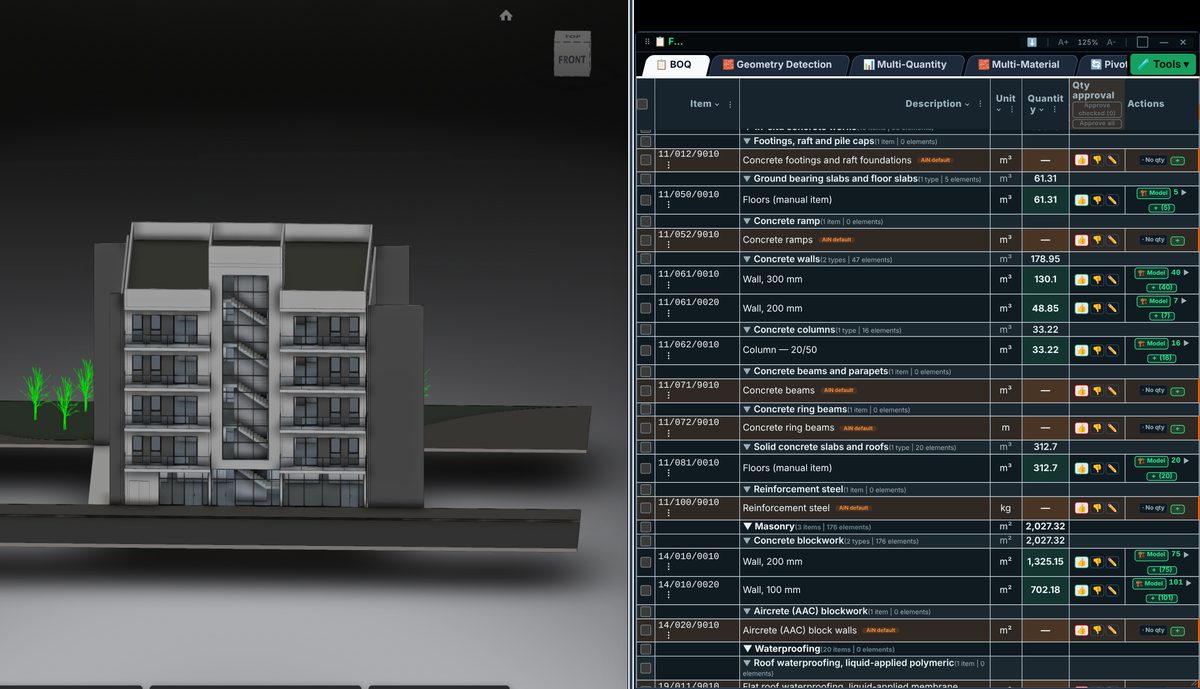
Prepare BOQ items from model data
Open a Revit or Navisworks model alongside the bill of quantities. Element data supports quantity calculations and the arrangement of items by trade. Start with the information present in the model, then review measurement units and the scope of each item.
Mapping uses building object properties and semantic enrichment to relate model information to work items. AI assists with classification, mapping and calculation; it never approves a quantity. The professional reviews each proposal, makes corrections where needed and decides whether to approve it.
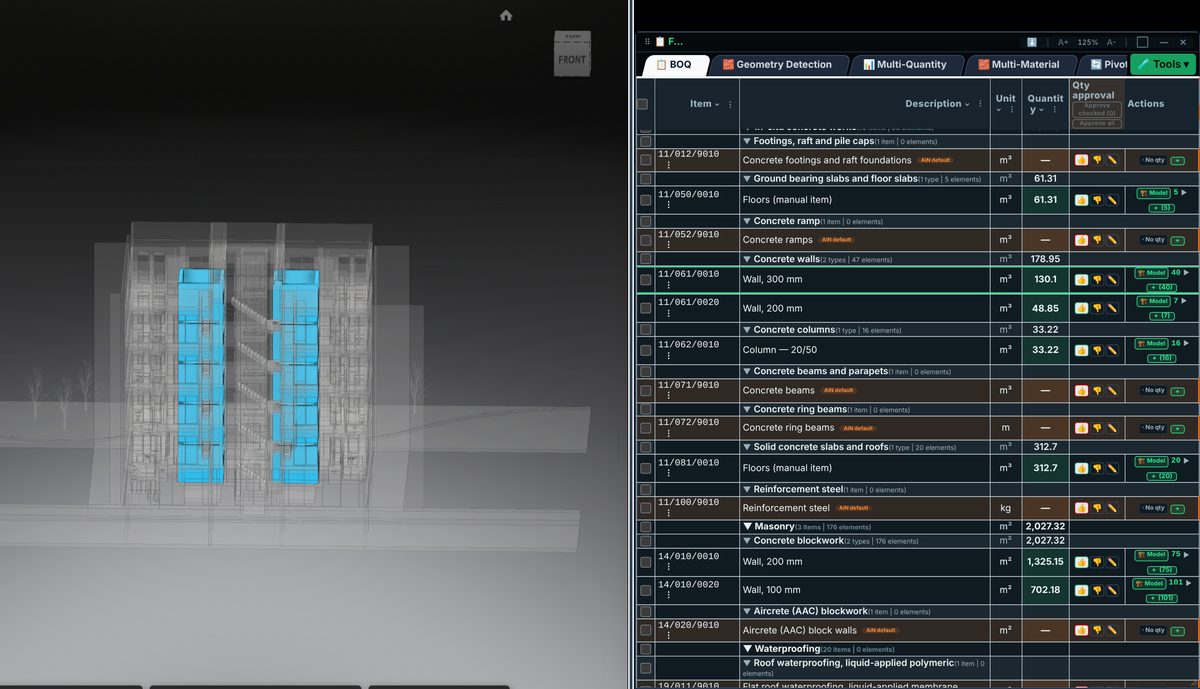
Check quantities against the elements
Select a model-based BOQ line to see the elements it was derived from. Isolating and colouring them in the 3D view helps you check what the quantity includes. You can also start with a selection of model elements and assign them to a line.
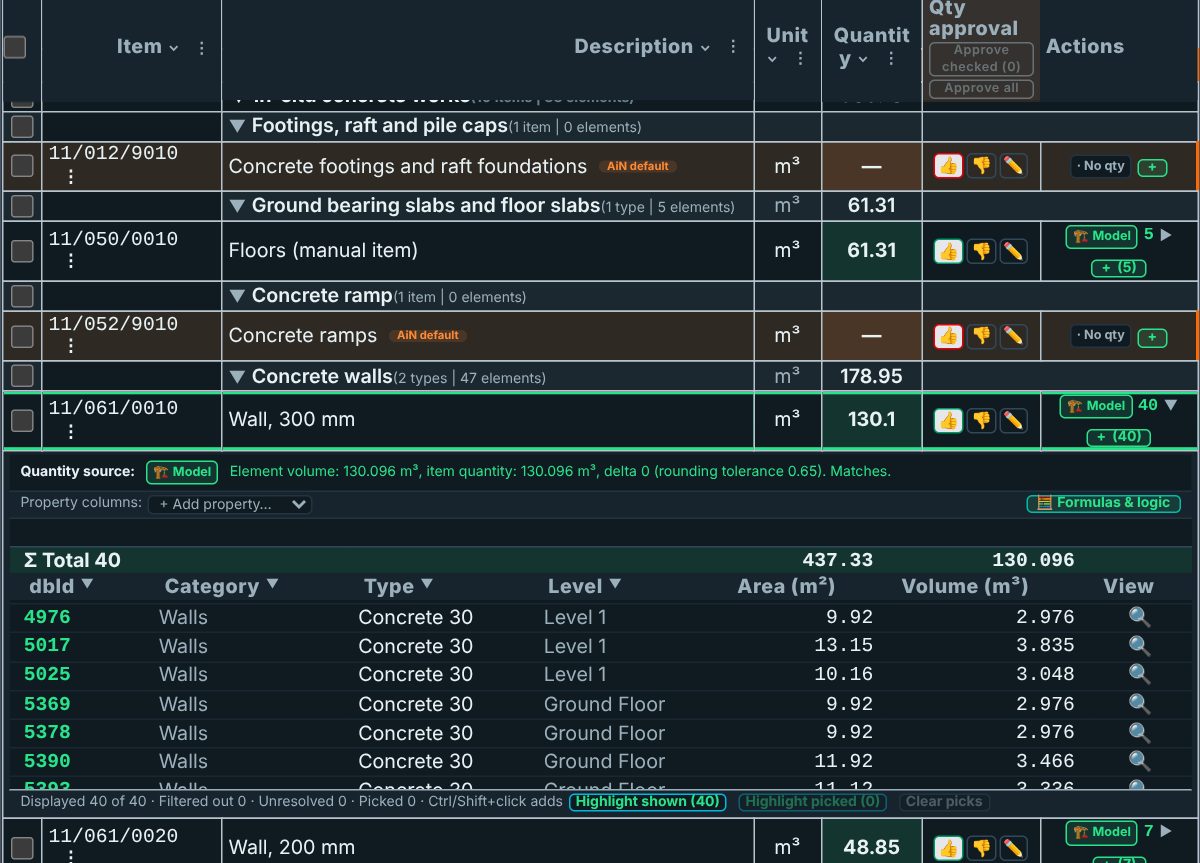
From the model to an Excel workbook
For a model-based line, open the underlying elements and their measured values. Work absent from the model needs a separate, labelled addition. The system surfaces specification gaps and missing data early, so the quantity surveyor sees them before they reach the site.
Excel export brings together the BOQ, quantity sources, review status and model references where available. Before handing over the workbook, check the items and additions against the project documents.
The source is part of the quantity review
Every model-based quantity stays connected to the elements it came from. Everything else is labelled.
A model measurement, a manual measurement, a specification value and an AI proposal have different origins. During review, identify where each line came from and what still needs clarification. Manual additions remain identified as additions; an AI proposal awaits a person's approval.
No quantity without a declared evidence status.
Built around quantity surveying work
Yaakov Avital, a registered building technician and quantity surveyor, develops AiN from work with models, drawings, specifications and tenders. The workflow connects item preparation with review of the information behind it. Read about the approach behind AiN.
AiN was officially published on Autodesk App Store on 12 May 2026.
View on Autodesk App Store
Automation, mapping and professional review
Model data extraction, mapping, editing and manual additions can be combined throughout BOQ preparation. Concrete requires less manual mapping than other trades. The model contents and supplied documents determine the additions needed. Professional review remains necessary before using the output.
- 1. Concrete — highest level of automation today
- 2. Finishes, MEP, rebar — can be produced, with more mapping and manual completion
- 3. Geometry — consistent calculation. AI assists classification, mapping and calculation; approval stays with a person
- 4. Every output requires QS approval before tender or invoice use
Three steps to a reviewed output
Start with the available Revit, Navisworks or IFC model, or an Excel workbook. Define the trades and deliverables needed for the project.
Review element data, map it to work items and complete missing information. Keep model data, manual inputs and proposals awaiting approval distinguishable.
Review the BOQ and its sources, check each line's status and export to Excel. The professional approves the output for use.
Information that accompanies the BOQ
- 1. BOQ organized by chapters
- 2. Quantity Facts from the BIM model
- 3. Row linked to model elements
- 4. A declared evidence status for every quantity
- 5. Excel Evidence Workbook
- 6. Status: suggested, in review, approved
- 7. Exceptions and gaps report
- 8. Foundation for tender and payment control
- 9. Manual rows, quantities, prices and notes, clearly separated from model data
Uses during tender preparation
Before a tender, review which work is included and where further information is needed.
Organised items and recorded sources support discussion of scope and required additions.
Compare work items with the design by moving from a BOQ line to its underlying elements.
Model links help you review the quantity in its building context, alongside the specification and other project documents.
Prepare and check a BOQ using model data, professional mapping and manual additions in one workflow.
Review elements, edit work items and prepare an Excel workbook for further checking and handover.
Choose the right way to work
Enquire about independent use of the software or a full quantity surveying service. Tell us about the project, the model and documents available, and the deliverable needed. Explore the software workflow or visit Yaakov Avital's quantity surveying service website. The scope is agreed after reviewing the supplied information.
This is not BIM viewing. From model to quantity — and back.
Watch the demo, then tell us about your model and the bill of quantities you need.

What is BIM? From a 3D model to information and a bill of quantities
A practical guide with examples, checks and further reading.
Read the guide